



Completing Open Enrollment in Workday
Open Enrollment Dates
- Open Enrollment Begins Monday, November 2
- Drop-in Session Nov 2, 9:30 – 11:30 a.m. (HUM315)
- Drop-in Session Nov 4, 1:00 – 3:00 p.m. (HUM315)
- Drop-in Session Nov 10, 11:00 a.m. – 1:00 p.m. (HUM315)
- Drop-in Session Nov 12, 1:30 – 3:30 p.m. (HUM315)
- Open Enrollment Closes Friday, November 13 at 11:59 p.m.
Overview
What is Open Enrollment?
Open Enrollment is the designated period when employees can enroll in, make changes to, or cancel their health insurance and other benefits. It is an important opportunity to review your current benefits and choose the plans that best meet your needs for the upcoming year. Macalester uses a passive enrollment process, meaning employees are not required to complete the Open Enrollment task. However, we strongly encourage all benefits-eligible staff and faculty to review their current benefit elections to ensure they continue to meet your needs for the upcoming year.
If you do not take action during open enrollment:
- Your current elections will automatically carry over to 2027, with the exception of FSA and HSA accounts. FSA and HSA accounts require an active election each year.
- You can only make changes if you experience a qualifying life event, such as losing other health coverage, getting married, or birth of a child.
If you have questions about Open Enrollment, you can attend one of the drop-in sessions or email [email protected].
Before Starting this Task
You will receive a To Do in your My Tasks inbox prompting you to begin the Open Enrollment process. This task will remain in your inbox until you have submitted your elections or open enrollment closes on November 13, 2026.
- Review the 2027 Benefits Guide and/or the 2027 Open Enrollment webpage to learn the new 2027 premiums and IRS limits.
- If you need to add a dependent to any of the benefits, be sure to have their full legal name, date of birth, biological sex, and social security number at hand.
New Hires and Employees with an active qualifying life event: If you have another enrollment event that is in progress or has not been started, you will still receive the Open Enrollment task in your Workday inbox. However, when you open the task, you will see a message indicating that Open Enrollment is on hold because another benefit enrollment event must be completed first. You must complete the outstanding event before you can proceed with Open Enrollment.
Enrollment Instructions
- Log into Workday. If you cannot log in, submit an ITS ticket.
- Select the My Task icon in the upper-right corner.
- Select the Change Benefit for Open Enrollment task and the Let’s Get Started button to begin your enrollment process.
- Review each individual benefit by selecting either the Manage, Enroll, or View action on its tile. Enroll, waive coverage, or change your current election. You can also add or remove eligible dependents from your benefit elections, if applicable.
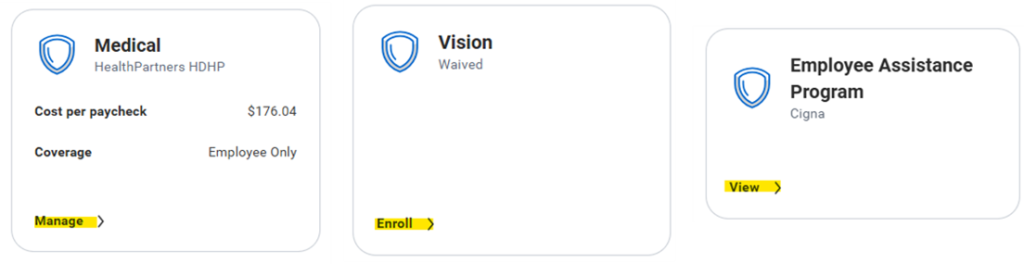
Enroll: You are not currently enrolled and can elect coverage for yourself and any eligible dependents, if applicable.
View: You cannot make changes during Open Enrollment. For example, EAP and LTD are employer-paid benefits that require no action.
As you work through the enrollment, the status on each benefit tile will indicate what you have done:
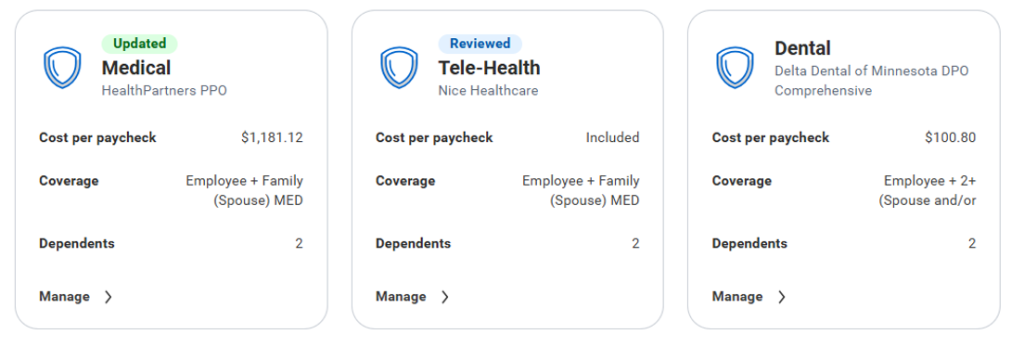
Blue “Reviewed”: You reviewed your benefit election but did not make any changes.
No status displayed: You have not opened that benefit tile yet.
- Designate beneficiaries for any enrolled Life Insurance plans.
- Review and sign your elections. Once you have reviewed each benefit tile and made all the appropriate elections for the 2027 calendar year, click the blue Review and Sign button to proceed.
- Review the summary which provides an overview of the selected benefits, their associated costs, as well as a section outlining the benefits you plan to waive.
- Accept and Submit: Once you have reviewed the summary and are satisfied with your elections, navigate to the bottom of the View Summary page, check the I Accept box, and select the Submit button.
What Happens Next
Confirm Submitted Enrollment
If you still see the task in My Tasks, this means that you have not submitted your enrollment. If you no longer see the task then your enrollment is complete. You can also confirm from your Benefits and Pay hub.
- From the Navigation sidebar, hover over the Employee app and select the Benefits and Pay hub.
- On the Overview tab, locate the Benefit Event: Open Enrollment tile and confirm that status is Submitted.
Make changes through November 13
Employees may make changes to their Open Enrollment elections as many times as they would like until the enrollment deadline. If you have already submitted your elections and would like to make additional changes, you will need to access your Open Enrollment event through a different section in Workday.
Follow the instructions below to make additional changes:
- From the Navigation sidebar, hover over the Employee app and select the Benefits and Pay hub.
- On the Overview tab, locate the Benefit Event: Open Enrollment tile.
- Select Edit and Let’s Get Started to reopen your elections and make and resubmit any necessary changes.
If applicable, complete additional Workday tasks
If you are adding a Domestic Partner to your benefits,
- You will be required to complete the Domestic Partner Affidavit. This form will be sent to you through Workday as a task after you have submitted your elections. You will need to complete the form and have the form notarized, then upload the completed form in Workday by November 13 so the Open Enrollment event can be finalized. You can find staff notaries on the Macalester web page.
If you elect more than $250,000 in Voluntary Life Insurance or Voluntary AD&D Insurance,
- You will receive a Workday task after Open Enrollment closes requesting that you complete an Evidence of Insurability (EOI) form. Please complete the form by November 26, 2026, to allow sufficient time for processing.
- If you do not complete the form by the deadline, your requested coverage increase will not be processed. Your coverage will revert to your previous election or, if you previously waived coverage, or remain at $250,000, as applicable if that was your prior election.