



Financial Reports in Workday
Workday Budget Reporting will start in August 2026.
Data may not display until then.
Accessing Financial Reports
Access to viewing specific Cost Centers or Non-Operating transactions is based on your role(s) in Workday. To request access to view a report, please contact [email protected].
With the proper access, you can use Workday’s reporting capabilities for real-time analysis of financial data. Workday provides multiples navigation methods.
- We recommend using the MAC Financial Reporting Dashboard which has links to all of the Macalester-specific finance reports.
- If you know the name of the report you are looking for, you can also use the Workday search bar.
- Add frequently used reports to your navigation side bar for quick access from anywhere in Workday.
Using Financial Reports
View Reports
- Select the report that aligns with your request. For example:
- To view Cost Center budget vs. actuals, select or search for the MAC Operating Budget vs Actuals by Cost Center report
- To view Non-Operating Transactions – Designations, select or search for MAC Non-Operating Transactions – Designations report
Report Filters
Some reports allow you to save regularly used filters. Some regularly used filters are:
- Organization: Align the report results to one or more Cost Center when looking for specific departmental budgets.
- Plan Name: Select the current fiscal year if you are looking for up-to-date information or a past fiscal year for historic data*.
- Period: Select Current and Prior Periods and the current month for up-to-date information or select past periods for historic data*.
*Historic data will not be available immediately following go-live.
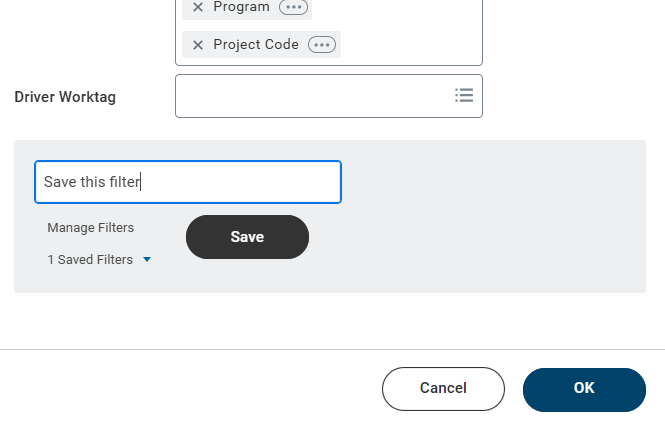
To Save a Filter
- On the report prompt screen enter search criteria and limit report data to what is relevant to you.
- The a saved period filter will not update, and therefore you need to update the filter when you want the next period’s data.
- Enter a filter name and select Save.
To Use a Saved Filter
- Save a filter for later use
- On the report prompt screen, select a filter from the Saved Filters drop downlist.
- The prompt fields will automatically populate with the values from your saved filter.
- The a saved period filter will not update, and therefore you need to update the filter when you want the next period’s data.
- Select OK to run the report with your saved criteria.
View Budget Line Detail (Report Drill Down)
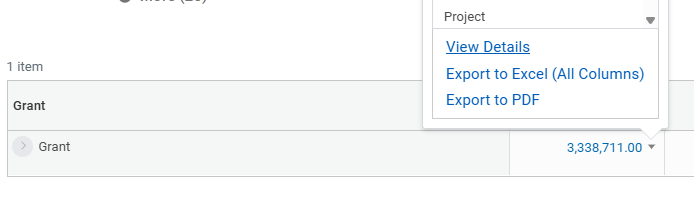
When viewing a report, any blue, hyperlinked number indicates that you can click on it to see the underlying details. This action, known as “drilling down,” allows you to view the specific transactions or budget lines that make up a summary total. For transactions with attachments you will be able to drill down to view the attachment.
- After running a report, the results will be displayed on the screen.
- Locate a summarized financial amount you wish to investigate further. These amounts are displayed as blue, hyperlinked numbers.
- Click directly on hyperlinked blue number.
- A new page or window will open, displaying the detailed data (e.g., individual journal lines, or transactions) that constitute the summary total you clicked.
- You can often continue to drill down on other blue links within the detail view for even more granular information.
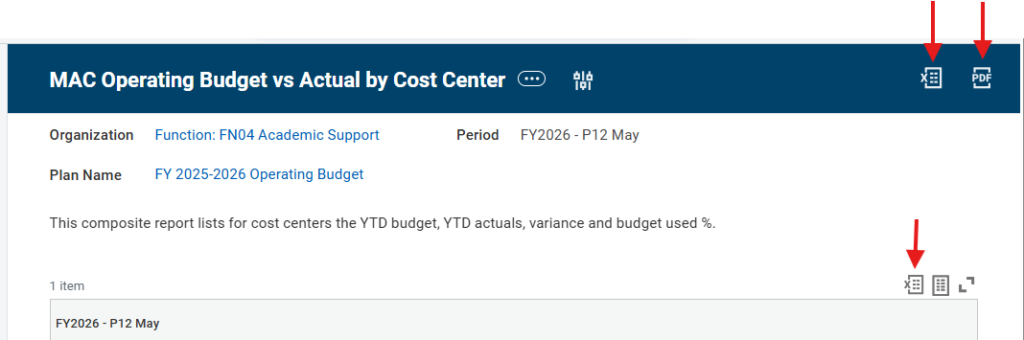
Export Report Data
To download the results of a report, select the Export to Excel or Export to PDF icon.
Reports in Workday
Budget vs Actuals Reports
Budget-to-actuals reporting and transaction monitoring is a critical activity for monitoring spend and ensuring financial stewardship at Macalester.
| Banner/Argos Report Name | Workday Report Name | Report Description |
|---|---|---|
| Budget and Transaction Expense by Fiscal Year | RPT140 MAC Operating Budget vs Actual by Cost Center | Compares Budget vs. Actual for Operating Budgets only. It does not include revenue or compensation budgets. |
| Budget and Transaction Expense by FY – Single Fund and Org Summary | MAC Operating Budget vs Actual by Cost Center report | Summary view of Operating Budgets equivalent data to the Banner report. |
| Budget and Transaction Expense by FY – Multiple Fund and Org Summary | Graphs using data from the MAC Operating Budget vs Actual by Cost Center report | Workday has the ability to create graphs from reports. Graphs will be developed following go-live. |
| Activity Code Report by Fiscal Year | Filtered views other existing reports provide the equivalent data. Examples:
| Filter one of the listed reports by Activity Code(s) to provide the equivalent data to the Banner report. |
| Banner/Argos Report Name Workday Report Name Report Description Fund(s) Balance Summary by FY | MAC Non-Operating Finance Reports Reports available for:
| Balance Available and transactions for Non-Operating “Funds”. In Workday, the Funds are now Worktags: Programs, Project Codes, Designation, Gifts or Grants. Each Worktag can be searched to provide the Banner-equivalent data. |
Other Financial Reports
| Banner/Argos Report Name | Workday Report Name | Report Description |
|---|---|---|
| No equivalent | MAC Grant Manager / PI Dashboard | Starting place for Grant Managers and Principal Investigators which has links to grant-specific finance reports |
| Grant Transaction by Date Range | MAC Grant Reports | As budgets / plans are entered in Workday, a report against the budget is the equivalent to the Banner Report |
| Vendor Invoice with FOAPAL | RPT046 MAC Find Supplier Invoices | Shows paid invoice data: Vendor Name, Invoice Number, Document Number, Invoice Date, Invoice Amount, and FOAPAL |
| Charitable Giving – Macalester | RPT082 MAC (Name TBD) | Automated report that is sent to [email protected] that shows the pledge amounts withheld during payroll processing for the month |
| My Finance Access and Approval | MAC Worktag Lookup | Filtering on “My Organizations,” a Workday user should see the Cost Center and any other Worktags they may be assigned to as a Manager, Monitor or Senior Leader. This is in addition to the FOAPAL to Workday lookup tool (use Incognito) |
Student Employment Reports
| Banner/Argos Report Name | Workday Report Name | Report Description |
|---|---|---|
| Student Employment budget report | RPT196 MAC Student Employment Department Funding | Running total student employment budget report that shows total budget and how much has been spent. |
| Student Employee Supervisor biweekly tracking report | RPT179 MAC Manager – Work-Study Award Amount | This report shows student supervisors their roster, how much their student employees their total award, how much student has allocated to that position and the remaining balance of the award as well as department budget information. Each supervisor should receive a report per the department they manage. |
| Student Employee biweekly tracking report | RPT180 MAC Student – Work-Study Award Amount | This report shows student employees their jobs on campus and how much of their award they have allocated to each position and how much they have left to earn. |
| Work/Study Redistribution Tool | RPT181 MAC Student Work-Study Award Amount | Shows how much a student has earned in one fund so updates can be made in a different fund (e.g. WFED, WMN, WMAC, NN) |