



Pcard Expense Approval
As a Pcard Approver, you are are required to review and approve Pcard and Out-of-Pocket (OOP) expenses for your assigned cardholders. Statement periods are typically the first to last day of the month, though it may be off by 1-3 days occasionally. You will receive regular Wells Fargo email reminders indicating you have transactions that require approval.
Cardholders are able to reconcile expenses as soon as they post to their account, and then submit expenses for approval. It is highly recommended for cardholders to do so on a regular basis, and the final deadline is 11:59pm on the 6th of the month for all expenses from the previous statement period. Approvers can approve Pcard expenses as soon as the cardholder submits them, and have through 11:59pm on the 10th of the month for all expenses from the previous statement period.
Cardholders are able to submit out-of-pocket (OOP) expenses (referred to as Cash Expenses in Wells Fargo) in their account for reimbursement to their personal bank account. It is important for approvers to regularly approve these expenses as the cardholder won’t be reimbursed until they are approved, and ACH reimbursements only go through once per month on the 11th. If OOPs aren’t approved in time, they will stay in the queue until they are approved and then be reimbursed during the ACH cycle that follows the approval.
To review and approve cardholder Pcard expenses
Getting Started & Approval Guidelines
Login to Pcard Portal (Wells Fargo)
View All or Unsubmitted Cardholder Expenses
Getting Started & Approval Guidelines
The new WellsOne Expense Manager is a transaction based platform, which deviates from the previous statement based platform. This means that you will approve expenses by the transaction, not by the statement as a whole. There is no “Approve Statement” button to press in the new platform; instead, you officially approve expenses by clicking the Approve button on each expense. You can approve multiple expenses at once if you’ve determined everything is correct and no changes need to be made.
Your role is to verify that each transaction is a valid work expense and that it has the correct FOAPAL, a description, and that the receipt is attached.
Receipt Guidelines:
- Receipts are required for ALL transactions regardless of dollar amount.
- If a receipt is missing, the cardholder should add a note to the transaction description stating they could not obtain a receipt and the reason why. Missing receipts should not be a regular occurrence.
- If any transaction $50 or over is missing a receipt, the cardholder must submit a Missing Receipt Declaration and upload the completed form to the expense as the receipt. For federal grants, all receipts must be submitted, regardless of dollar amount.
- Please note: this $50 threshold ONLY applies when a Missing Receipt Declaration is required to be submitted. It does not mean that the cardholder only needs to submit receipts for transactions that are $50 or more. We are externally audited for purchases of all amounts, so we require receipts for every purchase as much as possible.
- All receipts should be itemized and show what was purchased. Meal receipts must also include the written tip amount; the amount on the receipt must match what is on the statement.
- Mileage receipts can be created using a screenshot of Google maps showing the distance between destinations.
Business Purpose (Description) Guidelines
The expense description should provide a clear business purpose for the transaction. Descriptions do not have to be long or full sentences. If the expense is for an activity taking place in the future such as a flight, conference registration, prepaid hotel, etc… the cardholder must provide the dates the activity is actually taking place. This is important as expenses are required to come out of the fiscal year in which they take place.
Good Examples:
Lunch with J. Smith about reunion 2025
Donor meeting with J. Smith class of ‘72
Breakfast bagels for staff meeting
J. Smith Flight on 8/24/25 to AAA conference
J. Smith AAA conference registration (8/15-8/18)
Standard office supplies – pens, post it notes, paper, ect.
Test tubes for J. Smith Research Grant
Gift Card for student worker, J. Smith – end of year thank you
Personal Charge – used wrong card
FOAPAL Guidelines
Business Services is working on Finance Foundations self service online lessons. They are a work in progress, but are a good resource for learning more about FOAPALs if needed.
Every cardholder has a default Fund, Org, and Program code, and every expenses is automatically assigned an Account code. The Account code needs to be edited most often as it’s the one code that specifies what each purchase is (i.e. books, clothing, food, etc…). Cardholders should make any necessary FOAPAL changes on their own before submitting expenses for approval, but an occasional mistake may be made that you may need to fix.
Activity codes are not required and only some departments use them. If a department uses them, they must assign their own meaning to the available activity codes (linked at the beginning of this paragraph). Activity code fields are not for adding in notes; they must be established codes within Macalester’s accounting system and are always 4 numeric digits. If the cardholder adds random alphabetical characters to an Activity code field, that must be deleted. Any relevant purchase notes the cardholder wants to make should be added to the Business Purpose description field.
Location codes are not required and are ONLY used by Facilities Services, Residential Life, and High Winds and are always 4 numeric digits. If the cardholder adds a location code, but is not part of one of these departments, the code must be deleted. If the cardholder adds random alphabetical characters to a Location code field, that must be deleted as well. Any relevant purchase information, such as a work trip location, should be added to the Business Purpose description field.
Login
Go to the Wells Fargo Commercial Electronic Office sign on page. Please note: this is a special sign on website for commercial/business cards. You will not be able to access your account via the regular Wells Fargo website for individual/personal accounts.
Enter in the Company ID: MACAL196, Your User ID, and Password. Click “Sign On”.
If you receive an error message, try one more time. If you are still unsuccessful, use the Forgot Password link to try and reset your password. If it won’t allow you to reset your password, contact the Pcard Administrator to request a password reset.

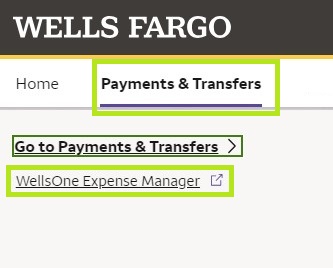
From this CEO home page, click on Payments & Transfers. In the sub menu, click on WellsOne Expense Manager to view your Pcard account.
Review Expenses
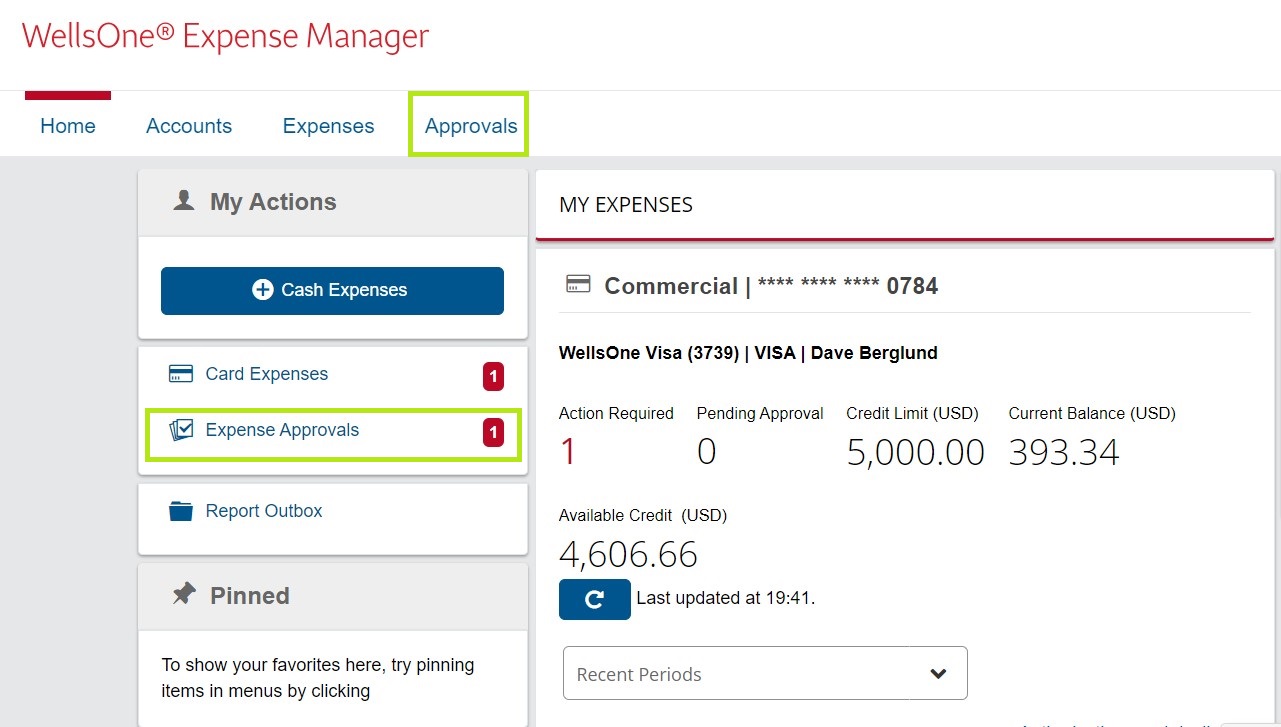
The Home Page will show you a quick run down of your monthly credit limit and your remaining available credit if you have your own Pcard. You can see if you have any outstanding expenses to approve on the left side below the blue Cash Expenses button; it will say Expense Approvals followed by the number of expenses you have to approve currently. To approve your cardholder’s expenses, you can click that button, or click the Approvals tab in your top menu.
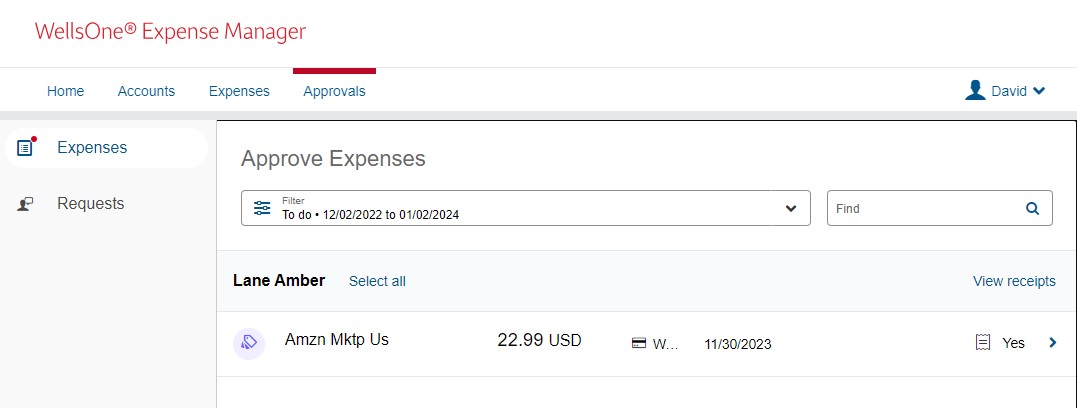
The default view is set to show expenses that still require review and approval. Approving expenses operates almost the exact same way as if you were reviewing your own Pcard expenses. Click on the expense you want to review.
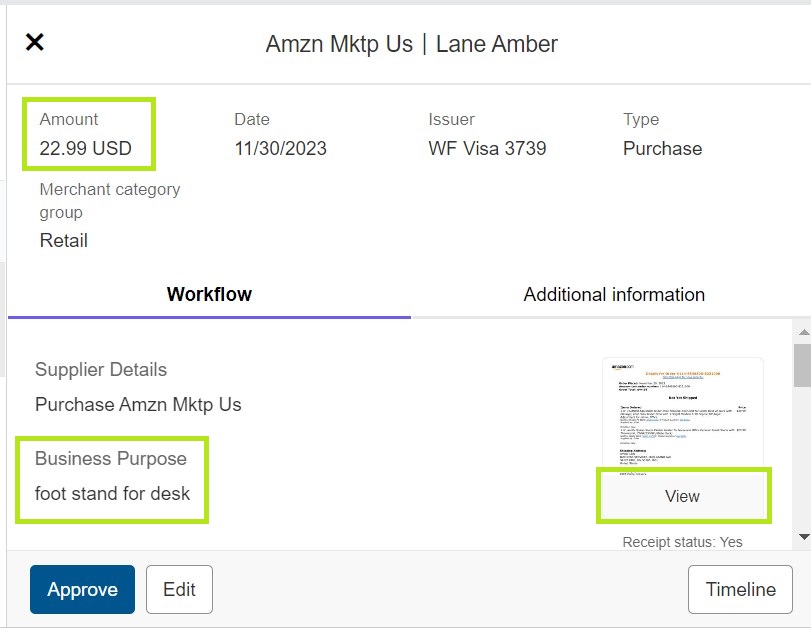
Once the expense opens, you can see the basic transaction details on top. The cardholder should have reviewed the FOAPAL and corrected it if necessary, entered a valid Description (Business Purpose) of the expense, and uploaded the receipt. Review the description, and then click View on the Receipt to see an enlarged version to verify the correct receipt was attached and that the expense was work related.
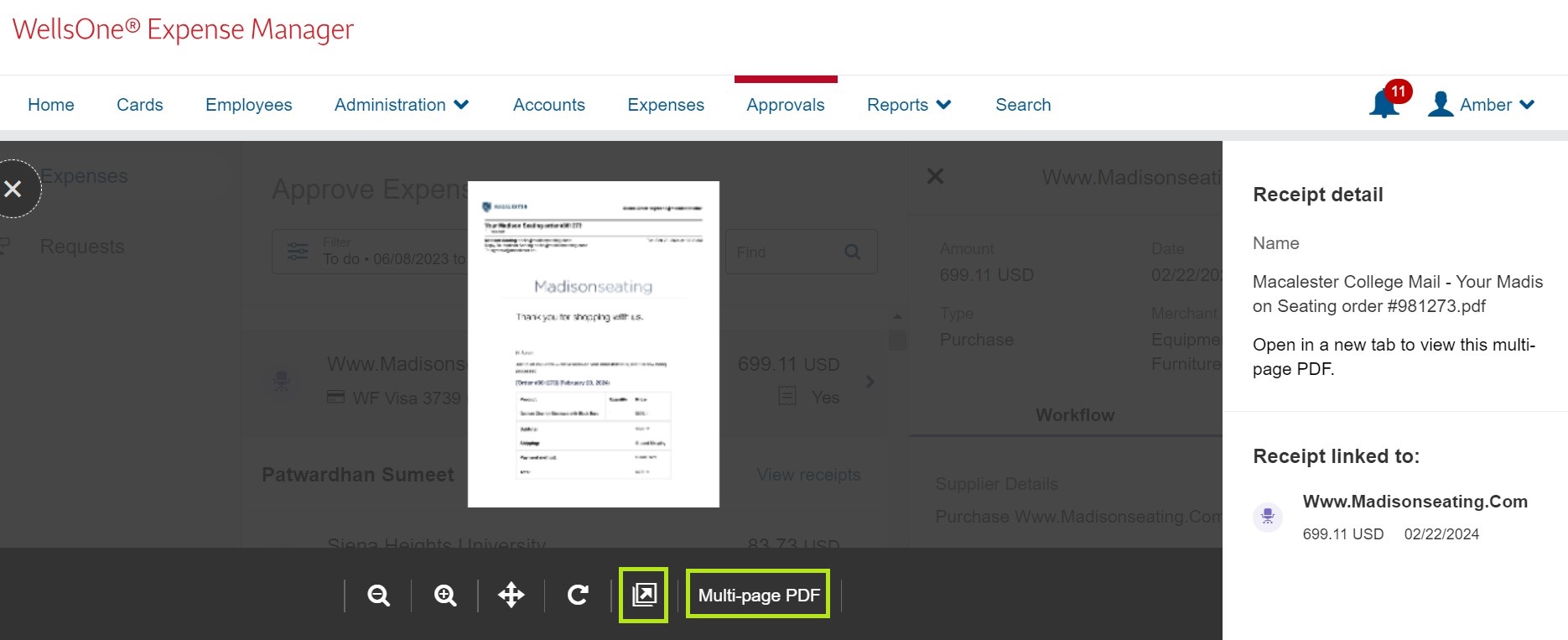
Once you click View on the receipt, it may not be easily legible initially, or it may be multiple pages (on the bottom it will say Multi-page PDF if so). If this happens, click the button with the diagonal arrow to open the receipt in a new window/tab to view the full size or multi page receipt.
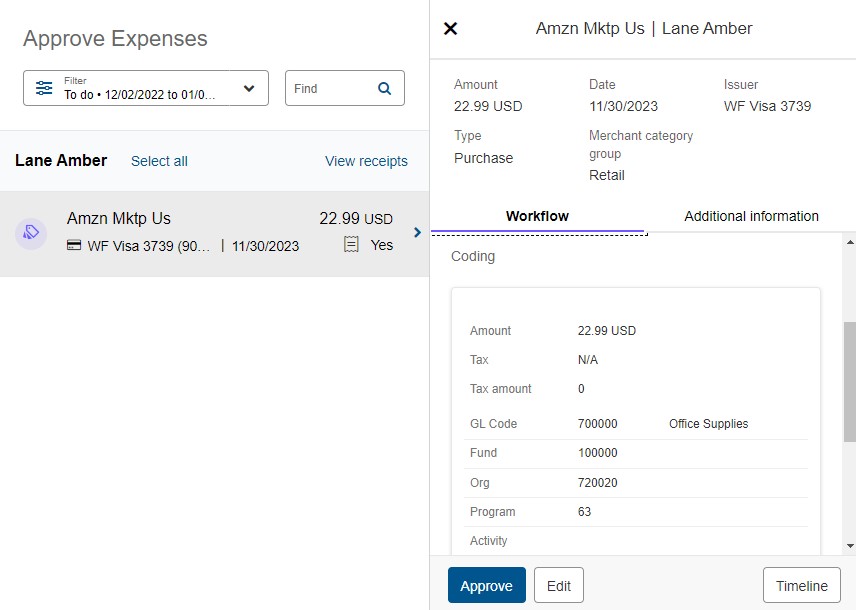
Close the receipt window once finished. Back on the expense, you can scroll down to view the FOAPAL the cardholder assigned the expense to. Verify that the Fund, Org, Account, Program, Activity, and Location codes are correct. If everything is complete and correct, you can click the Approve button and continue on with the rest of your pending approvals. If there is an inappropriate description, incorrect FOAPAL, or no receipt was uploaded, you can either modify the expense yourself, or send it back to your cardholder to fix. These processes are detailed more below.
Modify Expenses
Modifying expenses essentially functions the same way as if you were reconciling your own expenses.
To modify a description, FOAPAL, and/or receipt for your cardholder, click the Edit button to the right of the Approve button on the expense window.
To edit the description, scroll down the the Business Purpose field and make the desired changes by typing in the field.
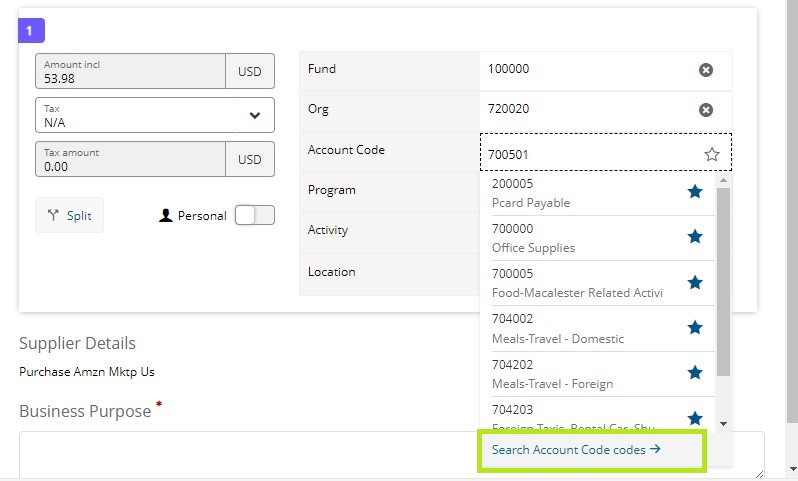
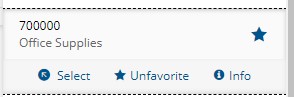
To edit the Account Code, click the code, and a menu will pop up. If the cardholder has favorited some codes, they will show up in this menu. If the one you’re looking for is there, click on it. If not, click Search Account Code codes to open the full list of Account Codes to choose from.
After pulling up the full list, you can search by code number or enter in a key word in the Description field and then click Search. You can also scroll down and page through all the options, but this method won’t show every available code, so you may need to use the Search function frequently. If you can’t find the code you need with the keyword you searched, try another keyword. You can also refer to the Account Code (gDoc) to see Account numbers, names, full descriptions, and examples as a guide to help you choose the most appropriate Account code. Click the most appropriate Account code on the expense once you’ve found it.
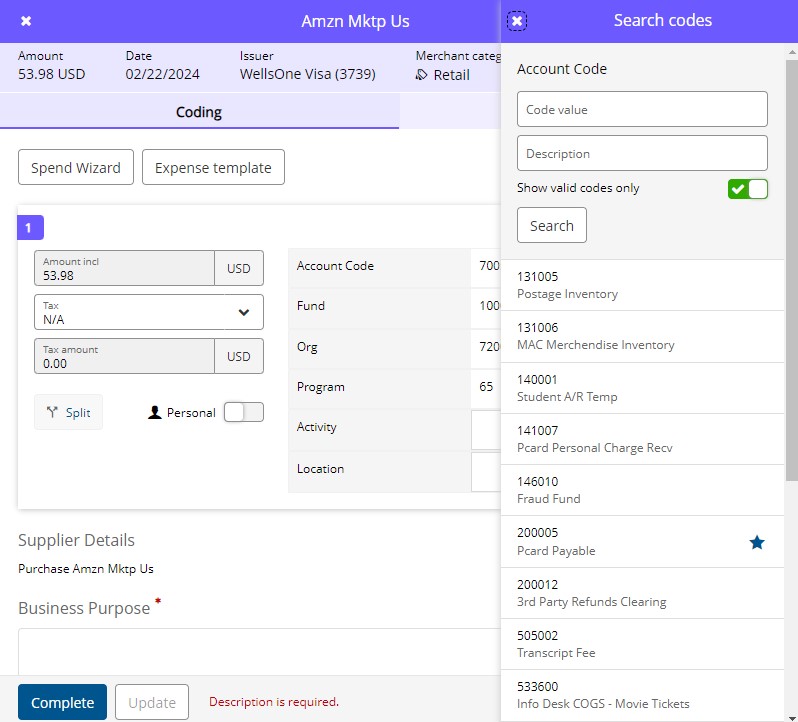
Once you click on the desired code, click Select to add the Account Code to the expense.
You can update the FUND, ORG (Organization), PROGRAM, ACTIVITY, and LOCATION codes by clicking in each box and retyping the appropriate code. ACTIVITY and LOCATION codes are not required but can be helpful. Check with your supervisor and/or Pcard approver to determine if your department uses Activity or Location codes. If you use Activity or Location codes, they must be codes that are already established with Macalester’s official accounting structure.
Do NOT enter Activity or Location codes if your department doesn’t use them (they should remain blank, do not enter 0), and if they are not officially established codes. NEVER enter alphabetical characters into a FOAPAL field. This will cause an error when processing our monthly data upload, which will require additional manual work to correct. To note who or what a purchase was for as an additional identifier, add that information to the Business Purpose (Description).
Be careful not to mix up the various FOAPAL fields, and double check that you’re entering the correct type of code into the correct field (the Activity field is commonly misused as the Account field for instance).
Once everything is entered, click Save and Close. If everything is correct on the expense now, click Approve.
Return Expenses to Cardholder
If you would rather have your cardholder fix their own errors, or if you have a question about an expense, you can add a comment and return the expense to them.
If you already clicked the Edit button on the expense, you first need to click Save and Close to return to the initial expense window.
Scroll to the bottom of the expense window where it says Transaction Amount, and click the down karat to expand the field. In the Ask a Question or Add a Comment field, type in the reason you’re returning the expense (i.e. Invalid Fund code, please fix and return). Then, click Send.
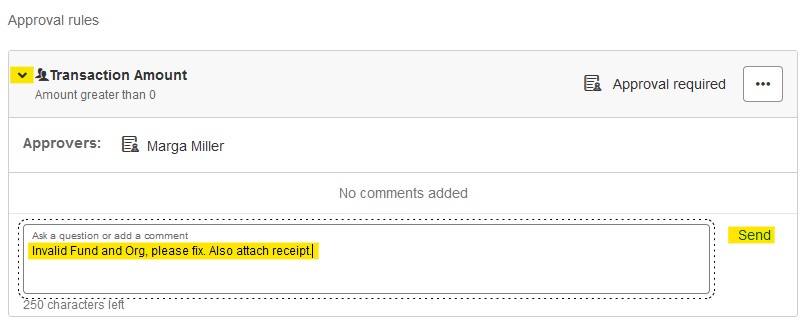
The cardholder will receive a notification of the query. Once they fix the expense and Complete it again, it will show up on the Approvals page again to be approved.
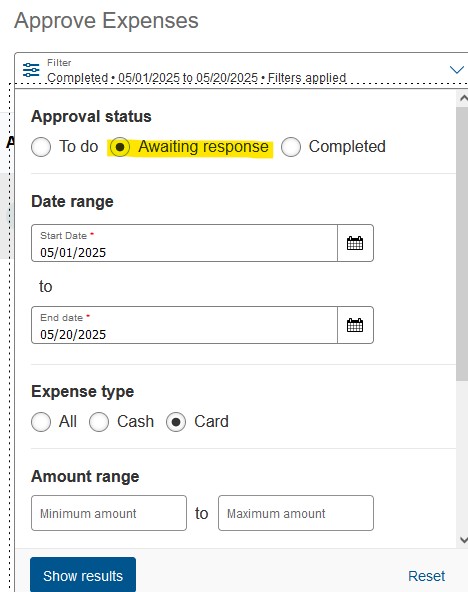
If you are expecting cardholders to fix Queried expenses, but they haven’t shown back up on your Approvals page, you can use the Approval Status filter at the top. Click the Awaiting Response status, and then click Show Results. If the expense shows up here, the cardholder still has not fixed it. You can email your cardholder to remind them if needed.
Splitting Expenses
Occasionally, an expense may need to be Split into multiple FOAPALs. This may happen if you’re splitting an expense with another department, if you need to mark only part of a purchase as a Personal expense, or if you purchase multiple types of products in one transaction (I.E. Books, Clothing, Office Supplies, etc…). If you notice your cardholder should have split an expense, you can do this for them, or you can send the expense back to them and have them split it.
To Split a transaction, select the transaction and click Edit if you haven’t already, and then click the Split button below the expense amount. It will automatically be split into two, but you can add extra splits if needed by clicking +Add line. If you don’t want the transaction split evenly, you can un-toggle the Split evenly button and add in the desired amounts. Click the Split button at the bottom of the Split pane when finished.
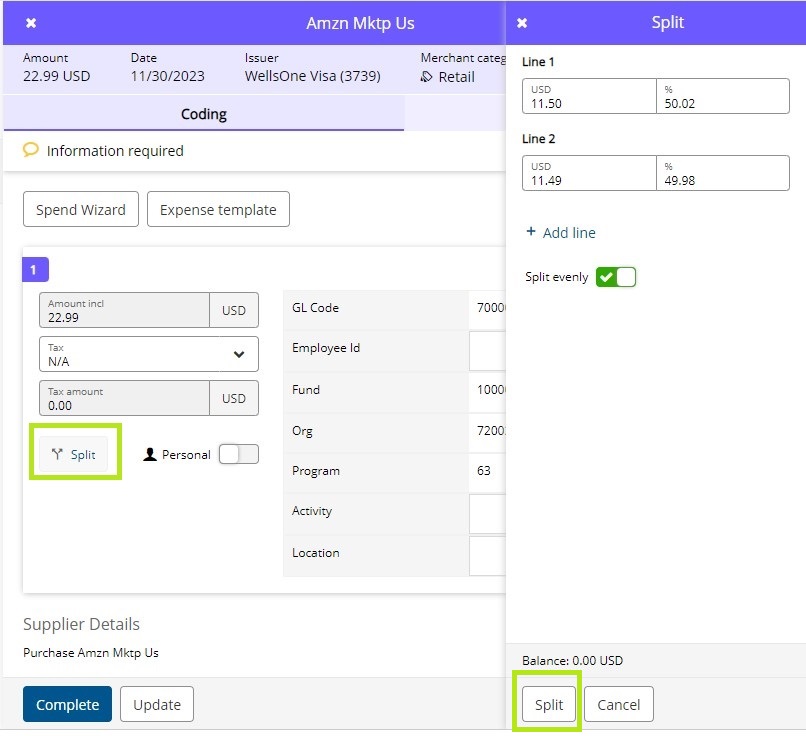
For each part of the split, adjust the FOAPALs to the needed codes.
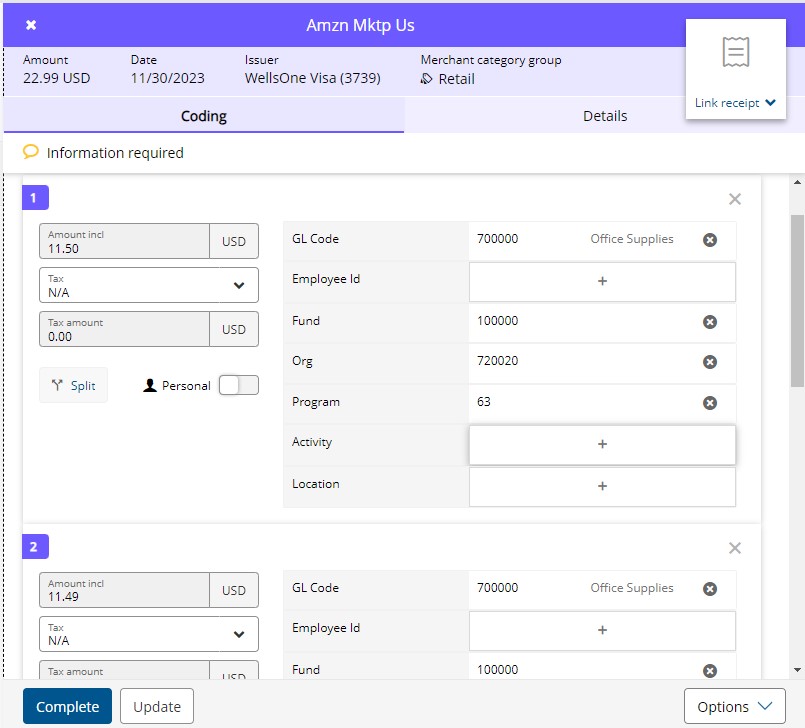
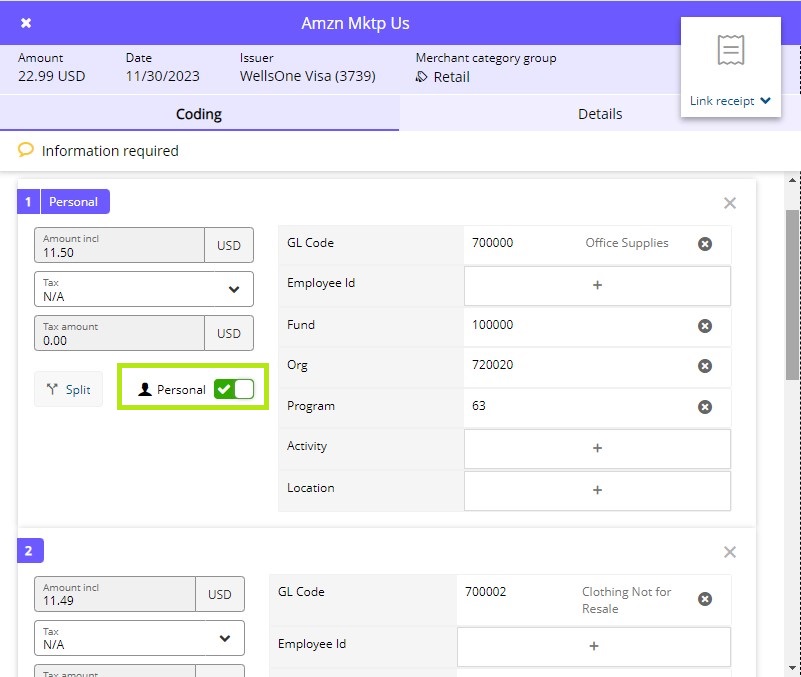
If part of the purchase was a Personal expense, toggle the Personal button for the part that the cardholder is reimbursing Macalester for. When finished updating everything on the expense, click Save and Close, and then click Approve.
Personal Purchases
Cardholders may have Pcard purchases that are personal for which Macalester needs to be reimbursed. This can happen on accident for several reasons, or they may have a work related reason. For example, if they are traveling for work and extend the trip for personal reasons, they may need to claim part of their hotel bill as personal for the nights that were not work related. Cardholders should not regularly have personal expenses unless there is a valid reason, and abuse of this can result in cards being revoked.
There is a Personal toggle button on each expense that the cardholder should click if the expense was personal. If they have their personal bank account linked, Wells Fargo will automatically withdraw the funds from the cardholder’s personal account and reimburse Macalester around the 11th of the month after the approval deadline. They will receive an email from Wells Fargo with the total amount to be withdrawn. If they don’t have a personal bank account linked to their Wells Fargo profile, the Pcard Administrator will contact them to collect a check or cash, but it is highly preferred for a bank account to be linked.
For Personal charges, the expense description should state that it was personal expense. The financial auditors prefer to have receipts for all transactions including personal expenses, but they are not mandatory.
Out of Pocket (Cash) Expenses
Cardholders may use their own personal funds to pay for work expenses as Macalester allows this. If they choose to do this, it is highly preferred for the employee to enter the expense as an Out-of-Pocket (OOP) expense in their Wells Fargo account to be reimbursed via ACH (their personal bank account must be linked). OOPs are referred to as Cash Expenses on the new Wells Fargo site, but still referred to as OOPs internally at Macalester.
It is important to check if the cardholder has added OOPs – they will show up in the same area as all other expenses on the Approvals page. A dollar sign icon will appear on the left, with another in the middle next to the word Cash. Approving the expenses functions the same way as approving all other expenses.

The cardholder won’t be reimbursed until OOPs are approved, and ACH reimbursements only go through once per month on the 11th. If OOPs aren’t approved in time, they will stay in the queue until they are approved and then be reimbursed during the ACH cycle that follows the approval. Please try to approve OOPs promptly.
Reset Approved Expenses
Occasionally you made need to reset an already approved expense. This may happen if you or the cardholder realize later that the FOAPAL is incorrect, etc… As long as it is before the final approval deadline (EOD on the 10th for expenses from the prior statement period), you can reset the expense.
On the Approvals page, click the filters at the top, and then click Completed. Click Show Results.
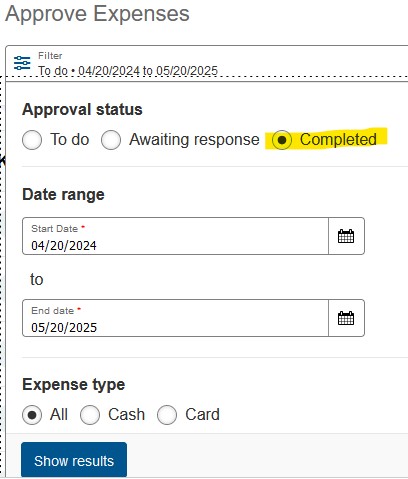
All approved expenses will show up under this Completed filter. Find the expense and click it to open it. Scroll down to the bottom Approval Rules section. Click the 3 dots on the right, and then click Reset Rule.
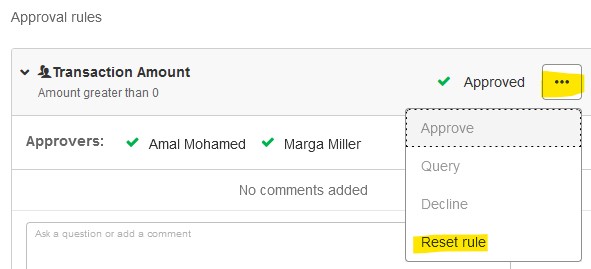
The expense will now show back up on your regular Approvals page unto the To Do filter. You can either edit the expense yourself and then re-approve it, or you can use the Query function to send it back to the cardholder to edit.
View All or Unsubmitted Cardholder Expenses
The Approvals page will only show expenses that cardholders have fully reconciled and submitted. To see all of your cardholders expenses regardless of status, go to the Search page.
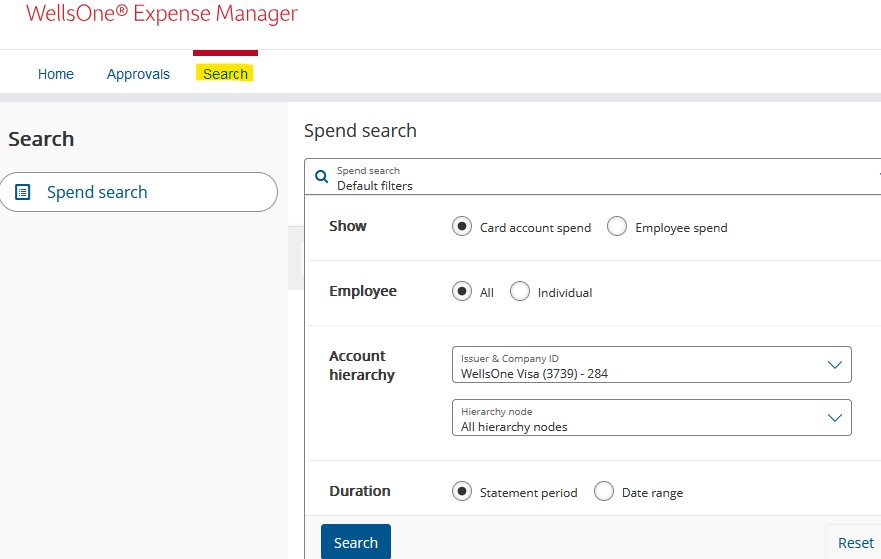
Once on the Search page, it will take a moment for the filters to pop up. If you want to see all of your cardholders pcard expenses, you can just scroll down in the filters and choose the statement period you want to view, and then click Search.

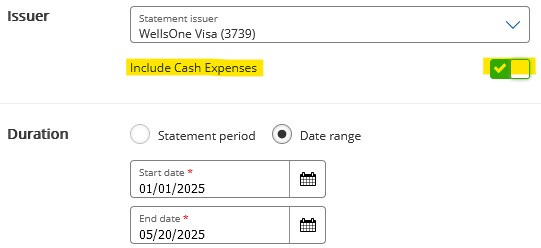
If you want to include OOPs (cash expenses), you need to toggle Cash Expenses. Doing this forces you to enter a date range; the start date may need to go back to when the expense occurred that you want to look at. Cardholders are supposed to use the date an expense originally occurred, but sometimes they use the date they enter the OOP. If the expense you’re looking for doesn’t show up, make sure the date range goes back for enough. Contact the Pcard Admin if needed.
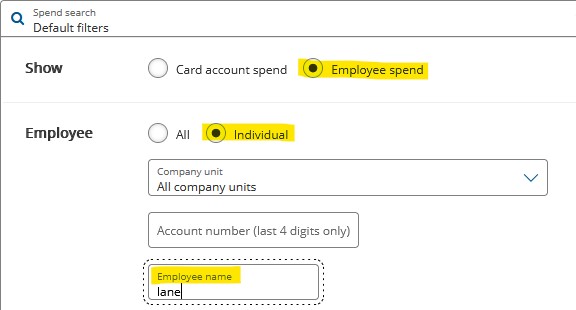
If you only want to look at one person’s expenses, you can use the filters towards the top and select “Employee Spend” and “Individual”. Then, in the Employee Name field, type in the person’s first OR last name. Typing in the full name may cause the expenses not to appear. Change any other filters you may need to, and then click Search.
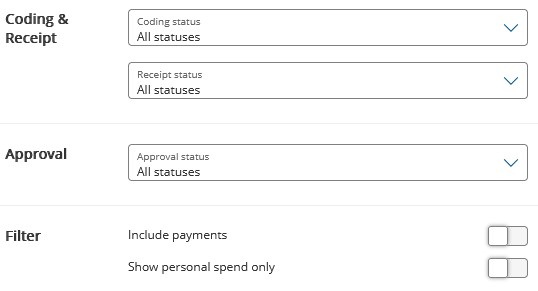
There are other helpful filters towards the bottom that can be used if you want to isolate the coding status of expenses (whether or not it’s been reconciled by the cardholder), or if you want to isolate a certain receipt status or approval status. There is another that can be toggled to show personal spend only if you want to look at a cardholder’s personal expenses.
Please contact the Pcard Administrator with any additional questions.