



Costing Allocations

Costing Allocation Setup and Management
Your Costing Allocation Setup and Management resource is designed for Supervisors and Managers to help navigate how to assign and update Worktags for employee wages in Workday.
Costing Allocations help ensure payroll expenses are charged to the appropriate funding source, such as a Cost Center, Fund, Function, Grant, Gift, or Project.
💻 Need to Enter or Update a Costing Allocation?
Review the How-To guides below for step-by-step instructions on entering, updating, and managing Costing Allocations.
-
💰 What is a Costing Allocation?
A Costing Allocation in Workday determines where an employee’s wages are charged by assigning specific Worktags to the payroll expense.
Worktags may include:
Cost Center • Fund • Function • Grant • Gift • Project
Managers use Costing Allocations to ensure employee wages are charged to the appropriate funding source.
Once a costing allocation is submitted, it routes to Finance for review and approval.
⚠️Important Before You Begin
Before starting a Costing Allocation, please make sure the employee and position are set up correctly in Workday.
The employee must be hired first
- Managers can update a costing allocation only after the employee has been hired into the position in Workday.
- A Costing Allocations can entered before the employee’s start date, as long as the position has been created and the employee has been successfully hired.
💡 Good to Know: You do not need to wait until the employee’s first day to enter the Costing Allocation.
📋Before You Start
Make sure you have the appropriate accounting information available before beginning the Workday process.
Do you have the employee’s Banner FOAPAL?
- If you know the employee’s Banner FOAPAL, you can use the Worktag Lookup Tool to translate the legacy Banner FOAPAL into the appropriate Workday Worktags.
Before entering the Costing Allocation:
- Look up the Banner FOAPAL using the Worktag Lookup Tool.
- Review the Worktags provided by the tool.
- Confirm the Worktags represent the correct funding source for the employee’s wages.
- Use the appropriate Worktags when completing the Costing Allocation in Workday.
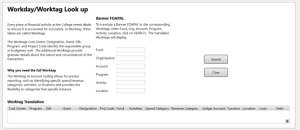
🔎Worktag Lookup Tool
Need to convert a Banner FOAPAL to Workday Worktags?
- Use the Worktag Lookup Tool before completing your Costing Allocation.
- If you know the employee’s Banner FOAPAL, you can use the Worktag Lookup Tool to translate the FOAPAL into the appropriate Workday Worktags before completing the costing allocation.
To access the lookup tool, click here: 🔗Open the Worktag Lookup Tool
Need help using the tool?
For additional information on how to use the tool, click here: 📖Tips to Use Worktag Lookup Tool
Worktag Lookup Tool
📌 Ready to Continue?
Once you have confirmed the appropriate Worktags and accounting information, you are ready to complete the Costing Allocation in Workday.
💬Need Assistance?
If you need assistance determining the appropriate Worktags or Account(s) to use for a costing allocation, or if you have additional questions regarding accounting Worktags:
Accounting Department at 📧[email protected]
-
Not sure which Costing Allocation process to use? Use the guide below to determine which process applies to your situation.
Process What You’re Doing Key Difference Create a Costing Allocation Creating a new allocation No existing allocation is being changed. Edit a Pending Costing Allocation Correcting an allocation that has been submitted but not yet approved You can modify the existing pending request. Update an Approved Costing Allocation Changing an allocation that has already been approved You must create a new allocation with a new effective date rather than editing the approved allocation. 💡Quick Guide
Your Situation Use This Process 🆕 No Costing Allocation exists yet Create a Costing Allocation 🟡 Costing Allocation has been submitted but is still pending Edit a Pending Costing Allocation 🟢 Costing Allocation has already been approved Update an Approved Costing Allocation — create a new allocation with a new effective date 💡 Quick Tip:- The navigation to open Assign costing Allocations is the same for all Costing Allocation processes.
-
Steps to Create a Costing Allocation
Use this process when creating a new Costing Allocation for an employee.
The navigation to open Assign Costing Allocations is the same for all Costing Allocation processes. Refer to the Steps to Update an Approved Costing Allocation section below for the navigation instructions.
Once you have opened Assign Costing Allocations, follow these steps:
- Follow the navigation steps in How to Update Costing Allocations to open Assign Costing Allocations.
- On the Assign Costing Allocation pop-up window, enter the appropriate Effective Date.
- Click OK.
- Enter the appropriate Worktags and allocation information.
- Review the Effective Date, Worktags, amounts, and percentages to make sure everything is correct.
- Click Submit to submit the Costing Allocation for approval.
📌 Important
Costing Allocations should be reviewed carefully before submitting to ensure payroll expenses are charged to the appropriate funding source.
If you need assistance determining the appropriate Worktags or Account(s) to use for a Costing Allocation, please contact the Accounting Department at [email protected].
-
Assigning a Costing Allocation
A Costing Allocation in Workday allows employee wages to be charged to specific Worktags (such as Cost Center, Fund, Function, Grant, Gift, or Project). Managers use this process to ensure payroll expenses are charged to the appropriate funding sources.
Once a costing allocation is submitted, it routes to Finance for review and approval.
Important Notes:
- Managers can update a costing allocation only after the employee has been hired into the position in Workday.
- Costing allocations may be entered before the employee’s start date, provided the position has been created and the employee has been successfully hired.
Before you Begin
Before starting the costing allocation process, make sure you have the appropriate accounting information available.
- If you know the employee’s Banner FOAPAL, you can use the Worktag Lookup Tool to translate the FOAPAL into the appropriate Workday Worktags.
- Review the Worktags provided by the Worktag Lookup Tool before entering the costing allocation to ensure the payroll expenses are charged to the correct funding source.
Worktag Lookup Tool
If you know the employee’s Banner FOAPAL, you can use the Worktag Lookup Tool to translate the FOAPAL into the appropriate Workday Worktags before completing the costing allocation.
To access the lookup tool, click here: 🔗Open the Worktag Lookup Tool
For additional information on how to use the tool, click here: 🔗Open the Worktag Lookup Tool
Worktag Lookup Tool
Additional Assistance
If you need assistance determining the appropriate Worktags or Account(s) to use for a costing allocation, or if you have additional questions regarding accounting Worktags:
- Please contact the Accounting Department at [email protected]
How to Update Costing Allocations:
Need to make a change to a Costing Allocation that has already been approved?
Once a Costing Allocation has been approved, you cannot edit the existing allocation. You must create a new Costing Allocation with the appropriate effective date and updated Worktags.
- Log in to Workday, use Single Sign on (SSO)
- Go to Employee’s Profile
- Locate Employee using the search box by entering their Name or Employee ID
- Click Actions
- Select Payroll
- Click Assign Costing Allocations
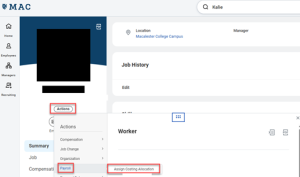
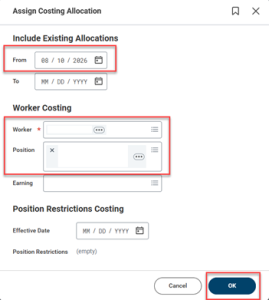
- Complete the Assign Costing Allocation window update the following fields:
- Effective date will default to today’s date
- Worker – The employee’s name will default automatically
- Position – Select the employee’s current active position (only required if the employee has multiple active positions).
- Click OK
- Complete the Proposed Costing Allocation tab
- Start date – Enter the effective date for the costing allocation
- End date – (if applicable) – Enter an end date only if the costing allocation is temporary and should revert to the employee’s primary costing allocation after a specified period
- Complete the Costing Allocations details grid
- Using the Worktag Lookup Tool, enter the applicable Worktags
- Cost Center
- Example: CC2710
- If the Cost Center shown under Costing Worktags Defaults (As of Start Date) matches the Worktag Lookup Tool, leave the Cost Center field blank.
- If the Cost Center does not match, enter the correct Cost Center from the Worktag Lookup Tool.
- Note: When adding Additional Worktags, Workday may automatically update the Cost Center. Always review the Cost Center after entering Additional Worktags to ensure it still matches the Worktag Lookup Tool. If it changes, remove the incorrect value and enter the correct Cost Center
- Additional Work Tags
- Gift – Example: GF10960
- Fund – Example: FD250
- Function – Example: FN02
- 📌 Important – For Payroll costing allocations, Spend Category is not required within Workday.
- Distribution Percent
- Single Costing Allocation
- Enter 100%
- Multiple Costing Allocation
- In the top left corner of the Costing Allocation Details table, click the + (Add Row) button to create an additional allocation line
- Enter the appropriate Cost Center and Additional Worktags for each allocation
- Update the Distribution Percent for each row
- Important: The total of all distribution percentages must equal 100%
- Comment
- Enter a comment, if applicable
- Click Submit
- Confirmation: A successful submission is indicated when the system displays the message
- Single Costing Allocation
- Review Entry
- Click View details
- Expand Details and Process to review the submitted costing allocation and routing information
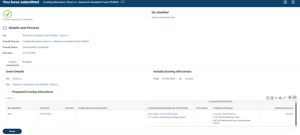
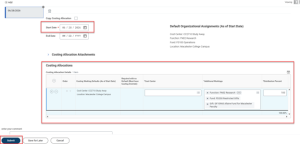
Example of a Single Costing Allocation
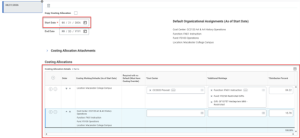
Example of Multiple Costing Allocations
-
Steps to Edit a Pending Costing Allocation
Need to make a change to a Costing Allocation that has not yet been approved?
Use this process when correcting a Costing Allocation that has been submitted but has not yet been approved.
The navigation to open Assign Costing Allocations is the same for all Costing Allocation processes. Refer to the Steps to Update an Approved Costing Allocation section below for the navigation instructions.
- Follow the navigation steps in How to Update Costing Allocations to open Assign Costing Allocations.
- On the Assign Costing Allocation pop-up window, remove the Effective Date so the field is blank.
- Click OK.
- Workday will display the existing pending Costing Allocation.
- Make the necessary changes to the Worktags, amounts, percentages, or other allocation information.
- Review the updated information.
- Click Submit to resubmit the Costing Allocation for approval.
Important: This process only works while the Costing Allocation is pending approval. Once it has been approved, you will need to create a new Costing Allocation using the How to Update an Approved Costing Allocation process.
-
🔍Steps to Review a Costing Allocation
Need to review an employee’s Costing Allocation or confirm which Worktags are being used for their payroll expenses?
Use the steps below to open Assign Costing Allocations and review the employee’s current allocation.
- Go to the employee’s Worker Profile.
- Select Actions > Payroll > Assign Costing Allocations.
- On the Assign Costing Allocation window, enter the applicable Effective Date, if needed, to locate the Costing Allocation you want to review.
- Click OK.
- Review the Costing Allocation information displayed for the employee.
- Review the applicable Worktags, such as:
- Cost Center
- Fund
- Function
- Grant
- Gift
- Project
- Review the allocation details, including the amount, percentage, or other allocation information, to confirm the payroll expenses are being charged appropriately.
- Review the Effective Date to confirm when the Costing Allocation begins.
🔄If Changes are Needed:
Costing Allocation Status What to Do 🟡 Pending Approval Follow How to Edit a Pending Costing Allocation (Before Approval). 🟢 Approved Follow How to Update an Approved Costing Allocation. 📌 Additional Information
Before submitting or updating a Costing Allocation, carefully review the:
- Worktags • Allocation Amount/Percentage • Effective Date are correct
- If you need assistance determining which Worktags or account(s) should be used, please contact the Accounting Department at [email protected].